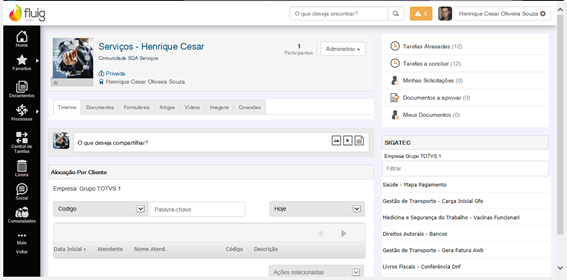
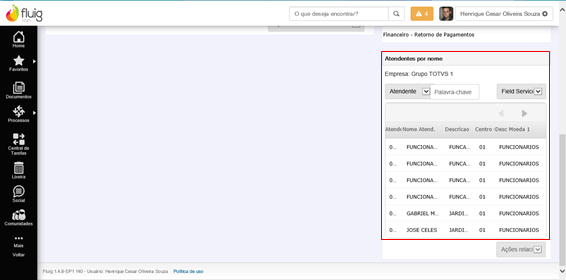
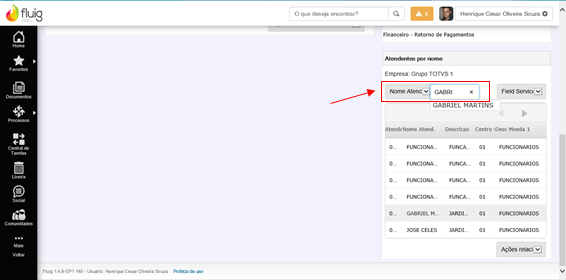
It consists on of making information related to contracts available by displaying all details on stations of the contract, indicating where resources and materials are allocated and implemented and by comparing what was estimated in each station. In this query, operators schedule data are considered.
These are the fields displayed in the query:
- Schedule Start Date: indicates the schedule start date
- Operator Code: indicates the operator code
- Name: indicates the operator name
- Description of Allocation Station: indicates the description of the allocation station/location
Filters Used:
- Today: considers the allocation day with the present date.
- Last 7 days: considers the allocation period with seven days prior to today's date.
- Last 30 days: considers the allocation period with thirty days prior to today's date.
- Last 60 days: considers the allocation period with sixty days prior to today's date..
Fluig must be integrated with Protheus, release 12.1.2 or later.
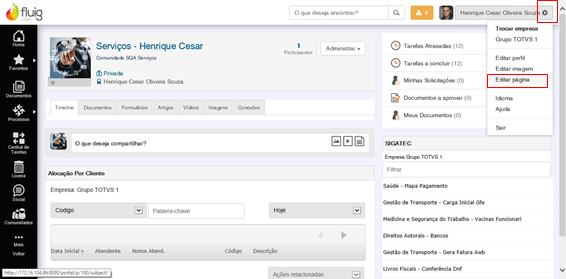
To view the quick query, follow these steps:
| Deck of Cards |
|---|
| effectDuration | 0.5 |
|---|
| history | false |
|---|
| id | samples |
|---|
| effectType | fade |
|---|
|
| Card |
|---|
| default | true |
|---|
| id | 1 |
|---|
| label | Step 1 |
|---|
|
|
in which | Card |
|---|
|
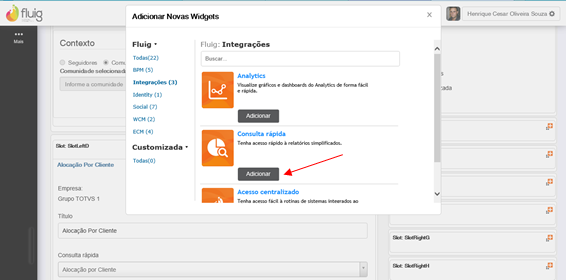
Click integrations:  Image Added Image Added
|
| Card |
|---|
|
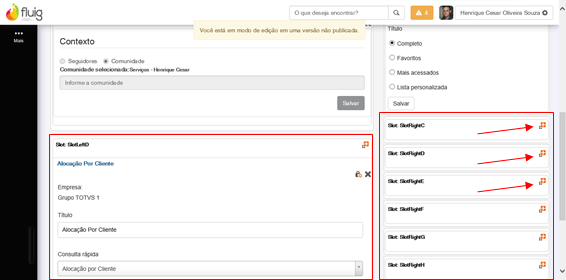
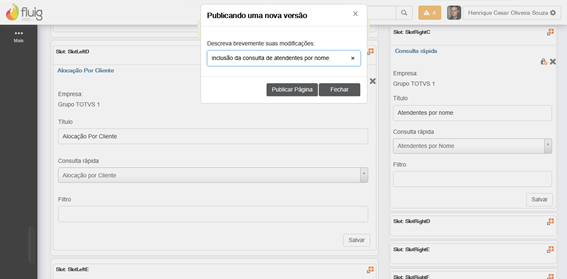
In the space for display, choose the Query to be added, define a Title, then enter the name in "Quick Query" field:  Image Added Image Added
|
| Card |
|---|
|
Click "Save", then "OK":  Image Added Image Added
|
|
For further information, access http://tdn.totvs.com/display/fluig/Plataforma+Fluig.